
Log in at http://10.0.0.1 as admin, open Wireless or Wi-Fi settings, edit the network, enter a new password of 12+ characters with WPA2 or WPA3 security, and click Save. Reconnect your devices with the new password.
You can change WiFi password and network name (SSID) settings at 10.0.0.1 in about two minutes. The steps below work for most routers and Piso WiFi machines that use this gateway, including Xfinity gateways.
Before you start
- You need the admin login, not the WiFi password. See 10.0.0.1 admin login.
- Use a device connected by cable if possible. When you change WiFi password settings, every wireless device disconnects. Write the new password down before you click Save so you can reconnect everything without guessing.
Change WiFi password on a 10.0.0.1 router
- Open
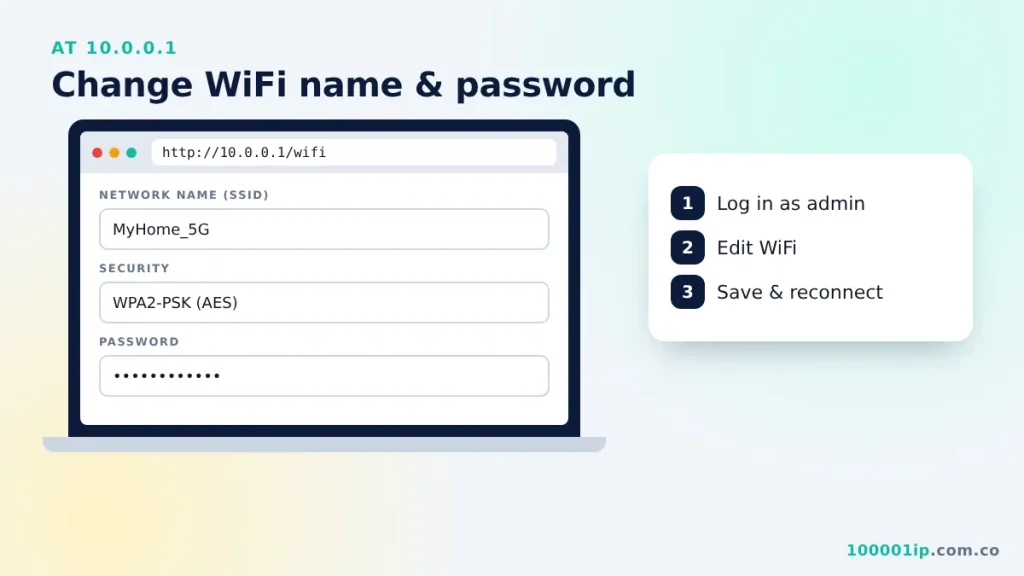
http://10.0.0.1and log in as admin. - Go to Wireless, WiFi or Gateway → Connection → Wi-Fi.
- Find the 2.4 GHz and 5 GHz networks. Click Edit.
- Change the Network Name (SSID) if you want a new name.
- Set security to WPA2-PSK (AES) or WPA3 if available.
- Enter a new password of at least 12 characters and click Save.
- Reconnect your devices using the new password.
Change WiFi password on an Xfinity gateway
- Open
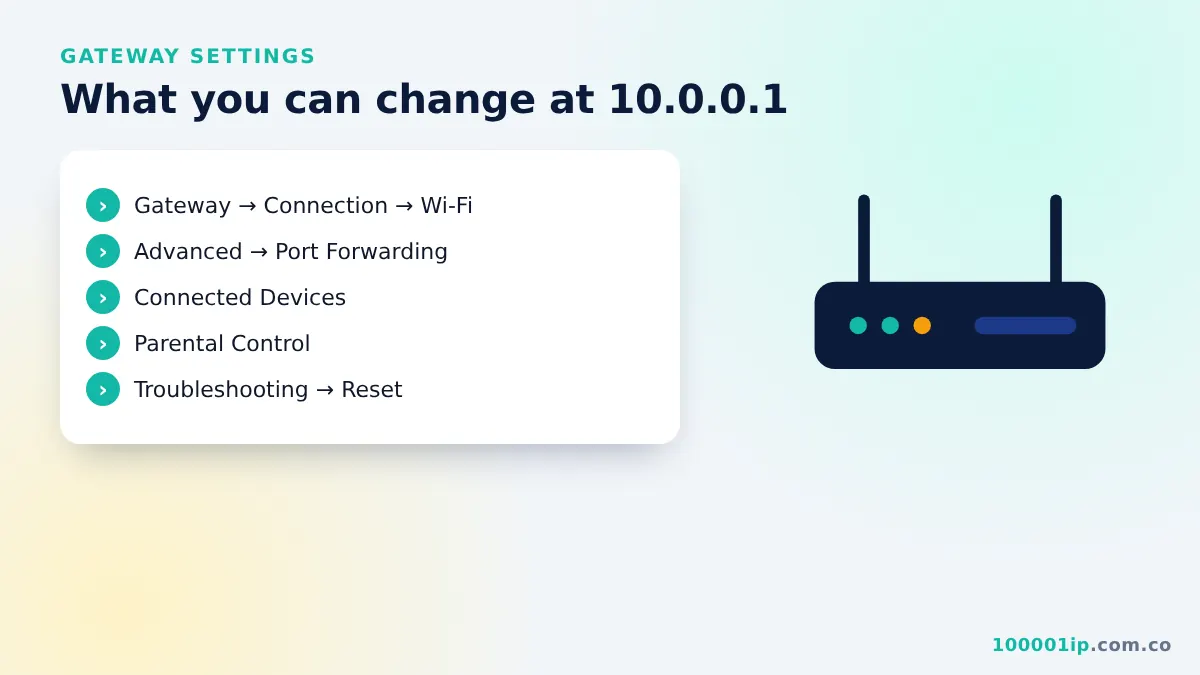
10.0.0.1and sign in with the admin username and password. - Go to Gateway → Connection → Wi-Fi.
- Click Edit next to the 2.4 GHz or 5 GHz network.
- Type the new network name and password, then click Save Settings.
- Repeat for the other band if you want both to match.
You can also do this in the Xfinity app under WiFi → View WiFi equipment. Changes made in the app and at 10.0.0.1 do the same thing.
Change the WiFi name on a Piso WiFi vendo
Customer Piso WiFi networks are usually open (no password) so anyone can reach the coin portal. Owners can change the network name and portal banner from 10.0.0.1/admin under Settings or Network. Keep the admin password private, because it controls your rates and sales. There is usually no reason to change WiFi password settings for customers, because an open network is what lets them reach the coin portal.
How to choose a strong WiFi password
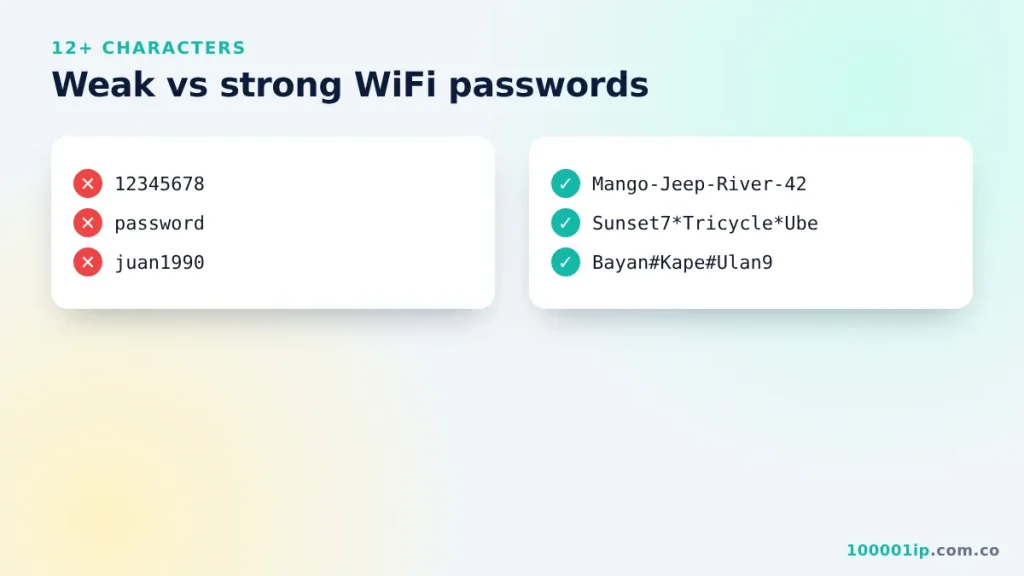
| Weak | Strong |
|---|---|
| 12345678 | Mango-Jeep-River-42 |
| password | Sunset7*Tricycle*Ube |
| your name + birthday | three random words + a number + a symbol |
A password manager can create and remember a long password for you. Avoid reusing the password from your email or social media accounts, and never write it on the router sticker where visitors can see it.
After you change WiFi password settings
Every device that used the old password disconnects straight away. Reconnect your phone first, then laptops, smart TVs, printers and cameras. Devices that are hard to reach, like a smart plug, may need their own app to update the WiFi details. If you kept the old network name, some devices keep trying the old password; forgetting the network on that device and joining again fixes this.
Change WiFi password FAQ
Will I disconnect everyone when I change WiFi password settings?
Yes. Every wireless device has to join again with the new password. Devices on a LAN cable stay connected.
I saved the new password and now 10.0.0.1 will not open. What happened?
Your device is no longer on the network. Reconnect with the new password, then open the admin page again. If you also changed the router’s IP, use the new address instead.
How often should I update my WiFi password?
Update it when you move in, when you suspect someone else is using your WiFi, or when guests you no longer want on the network know it. Otherwise, a long, unique password can stay in place.
Can I rename the WiFi without touching the password?
Yes. Edit only the Network Name (SSID) and save. Devices will see a new network, and you join it once with the same password.
Related guides
Frequently asked questions
Where do I change my WiFi password at 10.0.0.1?
After logging in, go to Wireless, WiFi, or Gateway > Connection > Wi-Fi and edit the network.
Will changing the WiFi password disconnect devices?
Yes. Every wireless device must reconnect using the new password.